
Tutorial: Change Matrix Analysis of USA National Land Cover (Annual NLCD) using ProRaster Scientific
The following tutorial is designed for users of ProRaster Scientific by Roberts Geospatial Engineering.
The tutorial was developed with version 4.0.07 of ProRaster Scientific.
Author: Sam Roberts, 7 November 2025
This article is available to download as a PDF.
You can download resources for this tutorial.
Introduction
The “Annual NLCD” data product is available for the USA (CONUS) and provides annual coverage from 1985 to 2024. The dataset is published by the MRLC (Multi-Resolution Land Characteristics Consortium) which is a US government organisation consisting of a group of federal agencies “who coordinate and generate consistent and relevant land cover information at the national scale for a wide variety of environmental, land management and modelling applications”. https://www.mrlc.gov

The primary NLCD land cover product is a raster that classifies the predominant state of the surface within the mapping year into one of sixteen classes, each of which is representative of a
natural and anthropogenic surface cover type. The classes are listed overleaf, taken directly from the land-cover webpage. https://www.mrlc.gov/data/type/land-cover
The NLCD data is free to use without restriction and carries the following citation:
U.S. Geological Survey (USGS), 2024, Annual NLCD Collection 1 Science Products: U.S. Geological Survey data release, https://doi.org/10.5066/P94UXNTS
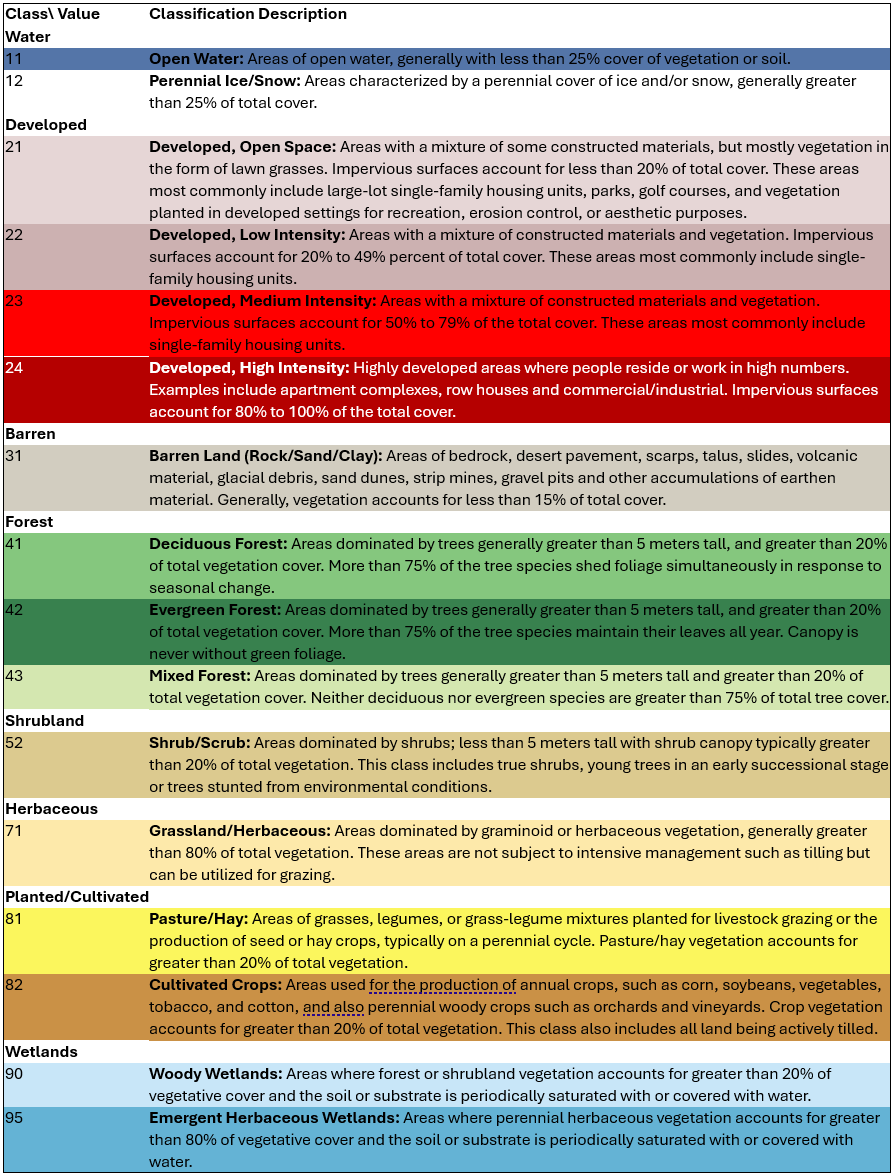
The NLCD annual classified rasters can be downloaded from the MRLC site by navigating to the Data/Downloads page. You can then filter the results to show only the “Annual NLCD” products. There are over 300 products shown, but in this study, we are only interested in the primary dataset – the annual “Land Cover (CONUS)” products from 1985 to 2024.
I downloaded these 40 raster products in late July 2025. The version offered at the time was Collection 1 Version 1 (1.1). Each product contains a geotiff raster and some additional metadata files. The raster contains an image that uses a 256-color palette. The single data band in this raster contains an 8-bit unsigned integer which is a zero-based index into the palette color array. The index values match the class values given in the class table.
We will use the following operations to process this data – Classify (Raster), Export raster, Raster Time Sequence, Time Differential, and Change Matrix. Along the way we will convert the 40 individual image-palette rasters into a single virtual raster with a temporal dimension that we will be able to visualise using the Time Control Panel and using map Swapping by time.
Rendering
You can render the supplied geotiff files in ProRaster using drag & drop or by browsing to the geotiff by any other means. The geotiff files supplied are not supplied in COG (Cloud Optimised Geotiff) format, so ProRaster will create an overview pyramid cache file (a .pprc file) for each geotiff file. The rasters are large and high-resolution, and so it may take up to a minute for ProRaster to generate this cache file, which must be done before the raster is displayed.
The rasters will be displayed using an Image layer and if you turn on mouse cursor tooltips in the map, ProRaster will report the color of each cell in the raster.
Converting to Classified
Annual Image Geotiff will be converted to Annual Classified MVR
In ProRaster terminology, the rasters supplied are shipped as Image-Palette rasters. But, in truth, the data is classified (thematic). Using ProRaster, we can convert these Image-Palette rasters into true Classified rasters. We will do this with the Classify (Raster) operation.
For each of the 40 input rasters, execute the Classify (Raster) operation to generate a Classified virtual raster (MVR) for each input. This operation will convert the input raster from an image-palette to a classified raster in real-time.

- Specify the source raster details. Browse to the first annual image geotiff. Select the appropriate field (there is only one) and band. Select the first band which contains the class index.
- Specify the output filename of the annual classified MVR. ProRaster automatically defines a default output filename, but you are free to change it.
- Specify the output data type. In a classified raster the data type is always an unsigned integer and all you need to do is to make sure the integer is wide enough to provide a unique index for each entry in the class table. In this case, an 8-bit integer (providing 256 classes) is sufficient. (In this case you could use a 4-bit integer, but it generally better to use 8-bit as a minimum).
- Check the “Classify failure index” option and set the class index value to zero. If there are any rogue data values in the input raster that are not covered by your class table, they will be assigned to class zero.
- Select the “Define Table and Map from CSV files” option. We now need to build these CSV files and once you have them ready, browse to the table and map files and record them in the dialog. The Table file contains a full definition of the classification table. The Map file maps values in the input raster to class indices in the classified raster.
The class table is an MxN matrix where each row defines a class and each column contains band values. It is a comma delimited file which you can create a in a text editor. Here are the first few lines of the table.
OriginalClass,ClassColour,ClassLabel,Description
Class,Colour,Label,Data
UNSIGNED_INT8,RGB,STRING,STRING
250, “RGB(0, 0, 0)”, “NoData”, “NoData”
11, “RGB(70, 107, 159)”, “Open Water”, “Open Water – All areas of open water”
The first line contains the band names. The second line describes what kind of data is in each band. The third line specifies what the data type of the band is. For more information on these options, consult the ProRaster User Guide. The fourth line (and subsequent lines) define a class. A value is defined for each band.
The map file (in this case) is very simple. The first line describes what kind of map we are defining. Then we list a series of value pairs – the input value and the class index it maps to. A few lines are listed below.
NUMERIC
250, 0
11, 1
12, 2
21, 3
22, 4
In the tutorial data package, I have included two sets of tables and map files. The first orders the classes in the same way that they are ordered in the NLCD product. The second changes the order of the classes to make a more logical progression from tree dominated vegetation, through to grasslands and barren land, then to developed land of increasing intensity. I found this order improved the visualisation of the change matrix, as we will see later. The new class order is shown below.
0 No Data
1 Perennial Ice/Snow
2 Open Water
3 Evergreen Forest
4 Mixed Forest
5 Deciduous Forest
6 Woody Wetlands
7 Shrub/Scrub
8 Emergent Herbaceous Wetlands
9 Grassland/Herbaceous
10 Barren Land (Rock/Sand/Clay)
11 Pasture/Hay
12 Cultivated Crops
13 Developed, Open Space
14 Developed, Low Intensity
15 Developed, Medium Intensity
16 Developed, High Intensity
Once you have defined all the operation properties, drop down the OK button menu and you can choose to “Save, close and display” or “Save and Close”. Choose the first option to immediately display the new annual classified MVR. If it has not already done so, the system will now create the overview cache file for the geotiff. Later, you may just want to “Save and Close” to prevent doing this work.
ProRaster displays the new raster just the same way as the original raster. The only change you can see is that the mouse cursor tooltip in a map now reports the class label of each pixel.
Export raster
Annual Classified MVR is converted to Annual Classified MRR
If you want, you can continue the exercise using these annual classified MVRs. But, to improve performance, reduce storage requirements, and maximise efficiency, I chose to convert them to MRR format using the “Export raster” operation.
Open the “Export raster” operation and select the MVR file you just created as the source input. The easiest way to select this file is to drop down the “Select recently accessed raster” menu button and select the raster you just created from the “Recent Output Rasters” group.
By default, output is to MRR format. A default output name is provided for you, and you may want to browse to change it. There is no need to define any other settings, but I made a few additional modifications.

- Firstly, I selected “Quality” compression. This is slower but produces a smaller file. As I will only write this file once and read it many times, I am happy to take a little longer to write it if it means I use less storage space.
- Secondly, hit the “Advanced Settings…” button to access the “Advanced MRR Export Settings” dialog. In this dialog, I checked the “Raster Metadata” option and browsed to the XML metadata file that was shipped with the original NLCD product. ProRaster will save the contents of this file into the MRR for safe keeping, so that it can always be accessed by any user of the file thereafter. This step is entirely optional.

As there are forty input rasters, you now need to repeat this Classify and Export process for all forty files. You can use the same classification table and map files for every input file. Also, if you choose the “Save and Close” option in the Classification (raster) operation, it will prevent the creation of overview cache files. You won’t need them once you have the MRR files, so it saves resources if you do not create them.
At the end of this process you will have forty annual classified MRR format rasters, each containing a Classified field, and representing one year in the forty-year sequence. Check your work! It is easy to make mistakes. We will only work with these MRR files from now on, so all the original geotiff files can now be archived or deleted.
Extension Exercise
By converting the virtual classified rasters to MRR, we have ‘burnt in’ the classification schema. But, by working with the virtual rasters instead, we can change the classification schema for all forty rasters at once by editing the table and map files we used in all virtual rasters. For example, you could simplify the schema so that all the “vegetation” and “developed” classes are merged. These changes would flow through all the derived virtual rasters, and you could run the Change Matrix operation again to measure changes with this merged schema.
Raster Time Sequence
Annual Classified MRR (or MVR) is converted to Temporal MVR
Now we will use the “Raster Time Sequence” operation to create a virtual raster with a temporal dimension. It will incorporate all the annual classified MRR rasters you have created.

Open the Raster Time Sequence operation and hit the browse button to select the input files. Select all forty of the annual classified MRR files you have just created (or MVR files if you did not Export to MRR). Initially, they will be displayed in no particular temporal order. You will need to select each file in the list and specify the time for it by hitting the Time button. As you do this, the list will start reordering by increasing time.
Do this for all forty files and check your work. Make sure the files are in the correct order and the dates match the filenames. Specify the output Temporal MVR file and hit OK. The Temporal MVR will now be displayed in ProRaster. The image below shows the growth of Dallas from 1985 (left) to 2024 (right).


Rendering a Temporal Raster
You can now render and explore the Temporal MVR you have just created. On the ProRaster main dialog, hit the button with the clock icon to open the Time Control Panel dialog. (It will only be enabled if you are displaying a raster with a temporal dimension). You can now use this control panel to step through the years and skip from one year to another. As you move from one yar to the next, the virtual raster engine will pull data from the appropriate MRR file for that particular year. Note that using the Time Control Panel modifies the rendering algorithm by changing the time range values in the components of the layers. You can also do this manually.
Swapping is another way to visualise temporal data, and it has some visual advantages as there is no delay. Right-click on the map and select the Swapping menu item, then Swap Target and choose Time. Right-click again and choose the swapping method (flip, fade, slide scroll). ProRaster will now render all time events to bitmaps, and once they are all available you can swap between them. Hit the arrow keys to swap or hit the on-screen buttons that appear on the centre left and right in the map.
Detecting Change
Temporal MVR is converted to Temporal Difference MVR
Use the “Time Differential” operation to detect changes from year to year, or from one year to other years. Select the Temporal MVR as the input, and the output will be a new Temporal Difference MVR.

By default, the operation applies the differential formula to all fields and bands. In this case, we only need to process the “Index” band which contains the zero-based class index values. Set the target scope to “…field and band” and select the “Index” band.
The operation computes the difference between cells at different times using the formula “Event-KeyEvent”. In this case, we just want to detect cells that change. We output these with a constant value and output all cells that have not changed as “empty”. You can customise the formula in the operation to achieve this. You can use any valid calculator expression (see the Calculator Operation for guidance). The “cond” command is an if-then-else calculator instruction. It can be restated “IF (Event==KeyEvent) THEN null ELSE 1”. All changed cells will have a value of 1 and all unchanged cells will be empty. Cells that are populated with the “null” value will be “empty”.
cond(Event==KeyEvent,null,1)
In my re-ordered table, classes 0, 1, and 2 represent NoData, Ice, and Water. You could opt not to measure changes in cells from or to these categories.
cond(Event==KeyEvent or (Event<3 or KeyEvent<3),null,1)
Farmed land often changes from one class to another, and then back, as farmers rest paddocks. You may not be interested in these kinds of changes. We can ignore changes from pasture (11) to cultivated crops (12) and back.
cond((Event==KeyEvent) or (Event<3 or KeyEvent<3) or ((Event=11 or Event=12) and (KeyEvent=11 or KeyEvent=12)),null,1)
To quantify the result, you can compute statistics for the differential virtual raster. Execute the “Statistics Analysis” operation. Choose the differential MVR as input and modify the output filename if desired. In this case we only need to compute statistics for the class index, so select “Process a field and band” and choose the “Index” band. Hit OK to compute statistics. Note that when you compute statistics, the entire virtual raster chain will be evaluated at every cell at base resolution. It may take some time to compute. At completion, it will generate a “Report” file in CSV and ASCII TXT format, and both files will be automatically opened.
If you want to output more information from this operation, you can output the class index that each cell changed to. Simply modify the formula to output “Event” instead of “1”. For example –
cond(Event==KeyEvent,null,Event)
Now you can render the result using the same color scheme as the classified raster, but first you need to make a color table. To do this, follow these instructions –
- Drag and drop the classified raster containing the color scheme you want to use in ProRaster.
- Open the Color Table Editor.
- Select “User Defined Color Tables”.
- Hit the browse icon to “Create a new color table for a classified raster”.
- Choose the Raster source (you should see the classified raster you just opened at the top of the list).
- Choose the Classified Field (it will default to the only field).
- Enter a new name for this color table, for example ”AnnualNLCD”.
- If you get a green tick (meaning the name is not already in use), hit OK, then OK.
You can now select this color table when rendering the differential raster using a LUT Color layer. The image below shows southern Florida with Naples on the left, Miama in the right, and separated by the Everglades. The image shows what cells have changed to between 1985 and 2024 and the class they changed to. It records a significant increase in urbanisation separated by largely untouched national park. I used the formula shown below in the Time Differential operation. It ignores changes in water and ice, and changes in cutivation.
cond((Event==KeyEvent) or (Event<3 or KeyEvent<3) or ((Event=11 or Event=12) and (KeyEvent=11 or KeyEvent=12)),null,Event)

Change Matrix
Temporal MVR is converted to Temporal Change Matrix MRR
Using the temporal MVR as input, we can execute the Change Matrix operation. This operation will count how many cells have changed from one classification to another classification between two different time events. For example, it will compute how many cells have transitioned from “Deciduous Forest” to “Developed, Low Intensity” from one year to the next. The result of this calculation is a matrix of values where each cell tracks the transition from the original class (on the X axis) to the new class (on the Y axis).

- Set the input source by selecting or browsing for the temporal MVR. A default output is provided which you can modify is desired. The operation will generate an MRR raster with the output filename and will also use this as a base name for other output ASCII CSV files.
- Select “Bin by Class” so that we are comparing classes rather than some value ranges, and the field and band ought to be selected by default.
- Select “Moving Change” to compute the change matrix between each time event and the next for all available time events. In our case, with 40 time events from 1985 to 2024, this would generate 39 outputs recording the change matrix from 1985 to 1986, 1986 to 1987 etc up to 2023 to 2024.
Alternatively, select “Fixed Change” to compute the change matrix between one time event and all other time events. In this case you will need to select the key time event. For example, you might select the key time event as 1985. It would then generate 30 outputs for the change matrix from 1985 to 1986, 1985 to 1987 etc up to 1985 to 2024.
The Change Matrix operation is not a virtual operation. When you hit OK, the operation will proceed to process the inputs. The operation outputs an MRR raster which will be displayed. This raster has a temporal dimension, so use the Time Control Panel to step through time events. In the map, turn on tooltips and select the “Key + All data table” mode. The tooltip will report the cell count for each change pair and in the main dialog all band information in the raster will be reported. This MRR contains string data bands that report the class the cells changed from, and the class the cells changed to.
The operation also outputs a collection of ASCII CSV files that you can use in any spreadsheet or graphing package. These files duplicate the information in each time event of the MRR. In addition, there is an ASCII CSV file called “ToTimeThreads” and one called “FromTimeThreads”. In these files the information is transposed. All the change counts are recorded for each (From,To) class pair.
Clipping to a Polygon
Temporal MVR is converted to Clipped Temporal MVR
It is likely that you will want to examine change statistics over a particular region – likely a State or Local Government Area. The image below is the Annual NLCD 2024 clipped to Connecticut.
It is easy to do this using virtual rasters. Firstly, make sure you have a polygon in a MapInfo Table format file. Then, run the “Clipping (by polygon)” operation. Set the input to the temporal MVR and select or browse to the polygon file. The operation will create a new clipped temporal MVR that is clipped to this polygon.
You can then run Time Difference or Change Matrix operations on this new virtual raster in the same way as already described.

Data Quality Issues
The Annual NLCD data, as downloaded in July 2025, appears to have a couple of interesting data quality issues. These issues are exposed by the results of the Change Matrix operation.

- Firstly, from 2022 to 2023 there is an anomaly in the recording of change between different “Developed” classifications. Although cells change from other classifications to “Developed” and from “Developed” to other classifications, exactly zero cells change from one “Developed” classification to another developed classification (for example from “Developed, Low Intensity” to “Developed, Medium Intensity”). This is the blue area in the top right corner.
- Secondly, almost no cells ever change from “Perennial Ice/Snow” to any other classification (or vice versa) over any time frame. This is counter to expectation as I would expect cells to transition from “Perennial Ice/Snow” as glaciers retreat (or to it as they advance). This is visible in the image above as the blue cells (zero count) in the second row from bottom, and second column from left.
Interpreting the results
Raster visualisation
We have generated 40 classified rasters that we can visualise for any year between 1985 and 2024. Use the Time Control Panel step through each year, and in a map enable Swapping (by time) to flip quickly between years to spot changes interactively.
We have used the Time Differential operation to create rasters that show where changes occur from year to year, and what cells changed to. Use the same techniques to step through time.
We have used the Change Matrix operation to count how many cells change from every class to every other class. This raster also has a temporal dimension, so use the same techniques to step through time. The raster also contains label values so turn on tooltips in the map and select the “Key + All data table” to track what pair of classes each cell represents.
Statistics
We can compute statistics for all the rasters we have created. We can clip any of these rasters to a polygon to compute statistics for a particular region (State, County, etc).
The statistics of the classified rasters can tell you the number of cells in each class (from the histogram), and from that you can compute the area and percentage coverage of each class, for each year.
The statistics of the time differential rasters can tell you the number of cells that change from one year to the next, and from this you can deduce area and percentage coverage change. By modifying the differential formula, you can target certain classes (or groups of classes) and you can compute both gains in a class and losses in a class (or groups of classes).
Spreadsheets
The ASCII CSV data output by the Change Matrix operation can be opened directly in any spreadsheet application. Of particular use are the two time-thread outputs that track change counts in a particular class pair throughout time. These can easily be graphed to visualise changes over time.
Making sense of the Change Matrix
Render the change matrix using a LUTColor layer and disable the Intensity component. Use a logarithmic color scale within manually defined limits. You may want to use the same color-data transform for each time event so that you can make visual comparison.
You can use the Opacity component to deemphasise small changes. For this dataset, it can be useful to remove the rows and columns associated with NoData, Ice, and Water. Use a polygon in the Mask component which you can quickly draw yourself using the Area tool in the map.
The image below shows the change matrix from 1985 to 2024 for the whole of CONUS using the reordered class table. The Forst three class (No Data, Ice, Water), populating the bottom rows and left columns, have been clipped out.

The operation only counts changes, so there is a SW – NE diagonal line where the count of each cell is zero.
The following diagram attempts to divide the class matrix into regions where significant shifts in land use are occurring.

Measuring Gain
The gain is the area that transitioned from any class to a particular class from Year A to Year B. Count the number of cells that transitioned to a class from Year A to B and then multiply this by the area of a cell (30x30m or 900 square metres). You can acquire the count from the “…ToTimeThreads.csv” file by summing all the cell counts for the “to” class for the desired pair of years.
Measuring Loss
The loss is the area that transitioned from a particular class to any other class from Year A to Year B. Count the number of cells that transitioned from a class from Year A to B and then multiply this by the area of a cell. Acquire the count from the “…FromTimeThreads.csv” file by summing all the cell counts for the “from” class for the desired pair of years.
You can also measure gain and loss using a Time Differential operation and computing statistics of the result. Conceptually, you need a formula like this –
If (Transition to Class) then output 1
Else
If (Transition from class) then output -1
Else output empty
Using class 16 (Developed, High Intensity) as an example you could use the following formula –
cond(KeyEvent<>16 and Event=16,1,cond(KeyEvent=16 and Event<>16,-1,null))
You can then compute statistics and count the number of cells that are -1 (loss) and +1 (gain).
Reclassifying
You may want to combine multiple classes into one (for example, the four “developed” classes could be combined into one).
One way to do this is to modify the class table and class map files that used in the classification operation. If you exported the classified rasters to MRR, you have to repeat all the processing. Otherwise, you can just repeat the analysis operations.
Another approach is to use the Time Differential operation to measure changes between multiple classes. For example, you could group the existing classes into three as shown below.
Undeveloped 3 – 10
Agriculture 11 – 12
Developed 13 – 16
We will assign these class values 0, 1, and 2. Anything outside this is empty. We want an expression of the form –
Formula 1: cond(Event==KeyEvent,null,Event)
But we replace “Event” with this expression that returns 0,1,2 or null.
Formula 2: cond(Event>=3 and Event<=10,0,cond(Event>=11 and Event<=12,1,cond(Event>=13 and Event<=16,2,null)))
We replace KeyEvent with this (essentially identical) expression that returns 0,1,2 or null.
Formula 3: cond(KeyEvent>=3 and KeyEvent<=10,0,cond(KeyEvent>=11 and KeyEvent<=12,1,cond(KeyEvent>=13 and KeyEvent<=16,2,null)))
Substituting formula 2 and 3 into formula 1, the final differential formula becomes –
cond(cond(Event>=3 and Event<=10,0,cond(Event>=11 and Event<=12,1,cond(Event>=13 and Event<=16,2,null)))== cond(KeyEvent>=3 and KeyEvent<=10,0,cond(KeyEvent>=11 and KeyEvent<=12,1,cond(KeyEvent>=13 and KeyEvent<=16,2,null))),null, cond(Event>=3 and Event<=10,0,cond(Event>=11 and Event<=12,1,cond(Event>=13 and Event<=16,2,null))))
Below is this raster rendered with a Green-Brown-Red color table for changes to Undeveloped, Agriculture and Developed. It shows a considerable greening through the rust belt and southern states, agricultural expansion in the East, and development on the East Coast and West Coast. Note that the change coverage is exaggerated as the raster overviews were generated to preserve any modified cells.

Online tools
For consumption by the general public, the MRLC provides a useful online tool that can present statistical analysis of the Annual NLCD data by State and County between any two selected years (1985 – 2024). For that county, it will present –
- The area in each class in Year A and Year B.
- The area that transitioned to a class (gain) from Year A to Year B.
- The area that transitioned away from a class (loss) from Year A to Year B.
0 Comments